


LAN Network Settings for DHCP (Article 1023)
Summary
This is the default setup for LAN-on-demand and most Mercury DSL and dedicated connections.
Body
1. Click on your Apple menu in the top-left corner of the window. Then select System Preferences.
2. In the window that opens up, select Network from the row of icons on the top.

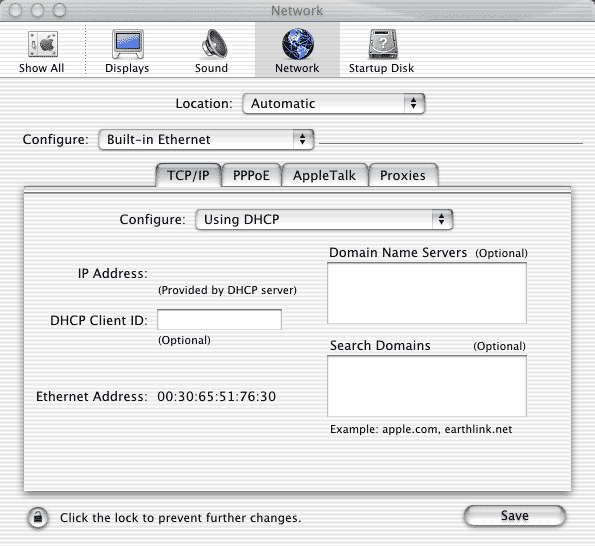
3. Next to Location: near the top of the window, make sure Automatic is selected. Just beneath that is the subheading Configure. Make sure Built-in Ethernet is selected.
Click on the TCP/IP tab near the top. Just beneath the TCP/IP tab, another Configure subheading will be present. Using DHCP should be selected in the drop-down menu next to that. Enter the following information:
- Domain Name Servers: 64.7.161.12 (hit your Return key) and 64.7.161.13.
- Search Domains: tm.net
- DHCP Client ID: unless your network administrator has set your computer up otherwise, leave this blank
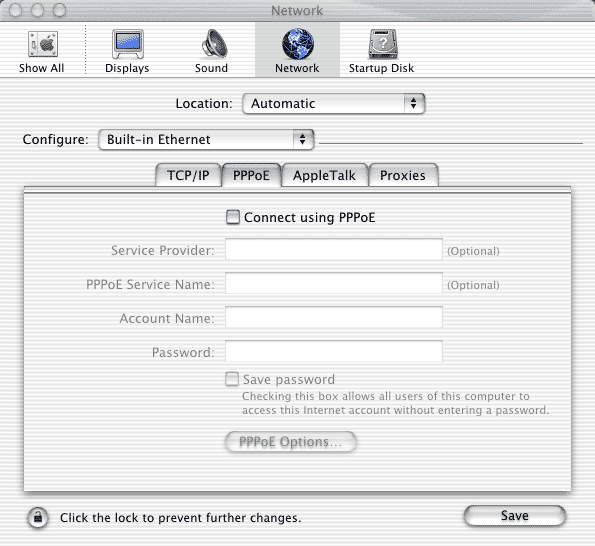
Click the PPPoE tab at the top.
4. Leave Connect using PPPoE unchecked, even if you have a DSL connection. Click the AppleTalk tab at the top.
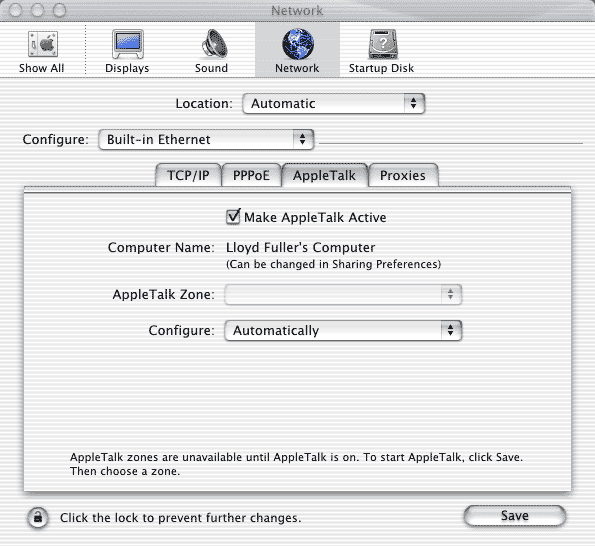
5. If you do not have AppleTalk set up on other Macintosh machines, take the checkmark out of Make AppleTalk Active.
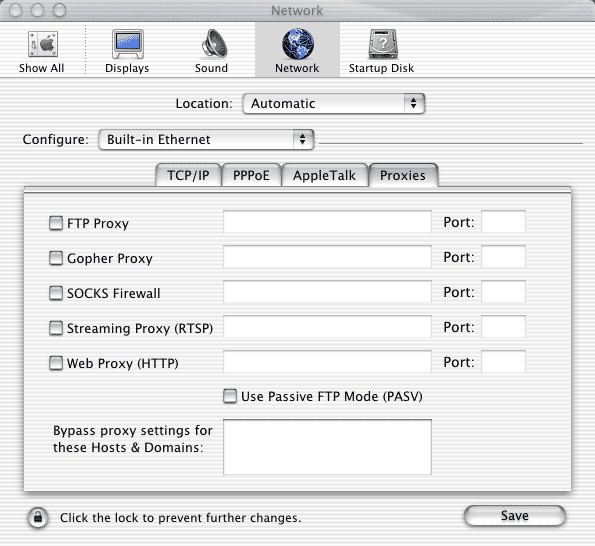
Click the Proxies tab at the top.
6. Unless your network administrator has set things otherwise, leave everything unchecked and blank.
If you have made any changes to any of the screens, click the Save button in the lower-right corner of the window. Then click on the red X in the upper-left corner of the window to close this screen.
Keywords
| 1023 |
| dhcp |