


Reconfigure an existing account (Issue 1055)
Body
E-mail Settings for Netscape Mail 6.0 (Mac edition)
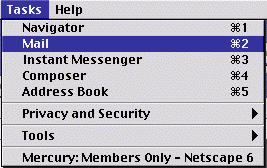
1. Open Netscape 6. Click on the Tasks menu at the top of the screen and then select Mail.
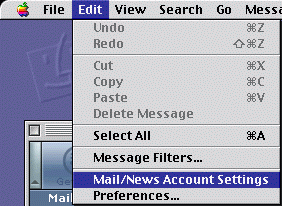
2. When the Mail window opens up, click on Edit and select Mail/News Account Settings.
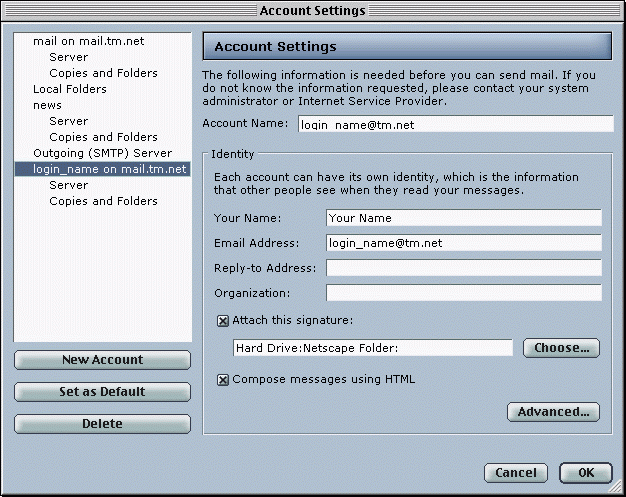
3. Select the name of the account that you would like to check. For example, login_name is selected and the settings for that account are displayed on the right. The following information should be entered:
Account Name: what ever you want
Your Name: what ever is typed here will be put in all of the From fields of your outgoing e-mails.
Email Address: login_name@tm.net, where login_name is replaced by your Mercury Network login name.
Reply-to Address: anything or blank
Any X's are optional.
Click on the Advanced button in the lower right corner of the window.
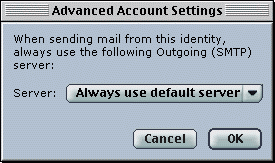
4. Next to Server, Always use default server should be selected. Click OK.
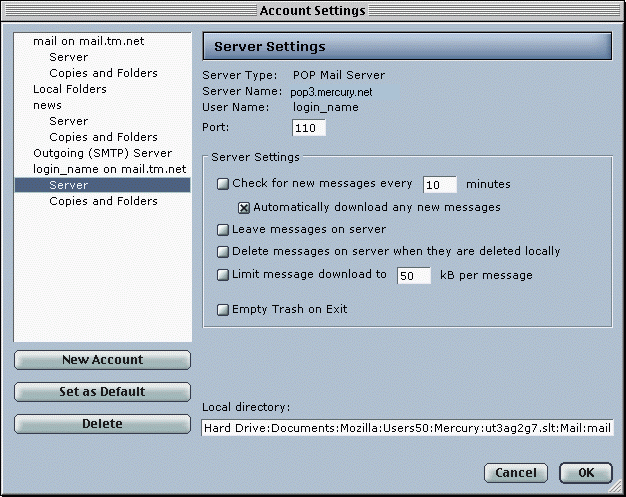
5. Back in the Account Settings window, click on Server beneath the name of the account whose settings you are checking. The following information should be selected:
Server Type: POP Mail Server
Server Name: pop3.mercury.net
User Name: login_name (first part of your e-mail address that comes before the "@" sign).
Port: 110
Any other X's are optional.
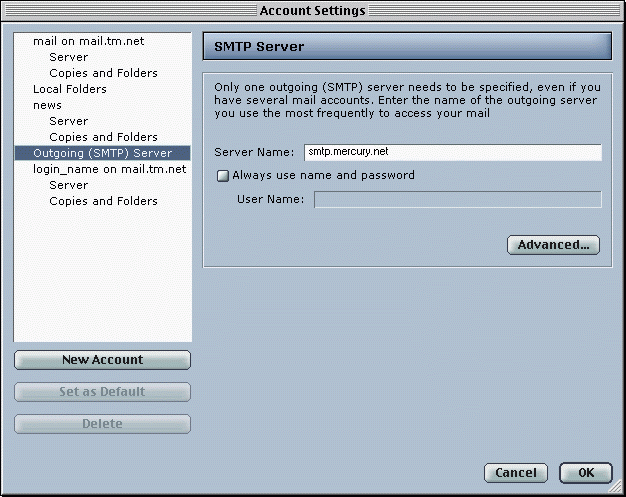
6. Click on Outgoing (SMTP) Server on the left side of the window. On the right side, smtp.mercury.net should be listed next to Server Name. Click the Advanced button on the right side of the window.
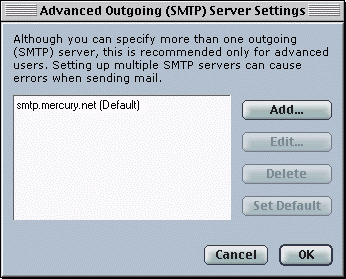
7. Make sure mail.mercury.net (Default) is listed. If mail.mercury.net isn't the default SMTP Server, highlight mail.mercury.net and click the Set Default button. Click OK. Then click OK in the Account Settings window.
Keywords
| 1055 |
| Netscape 6 |
| Mac |
| MacIntosh |
| existing account |